
Live Caption & Translation
Google Chrome on a computer can show the words on your screen as you listen or watch, in real time, for every audio and video lecture on this website. It can also translate those captions into another language.
Turn on Live Caption
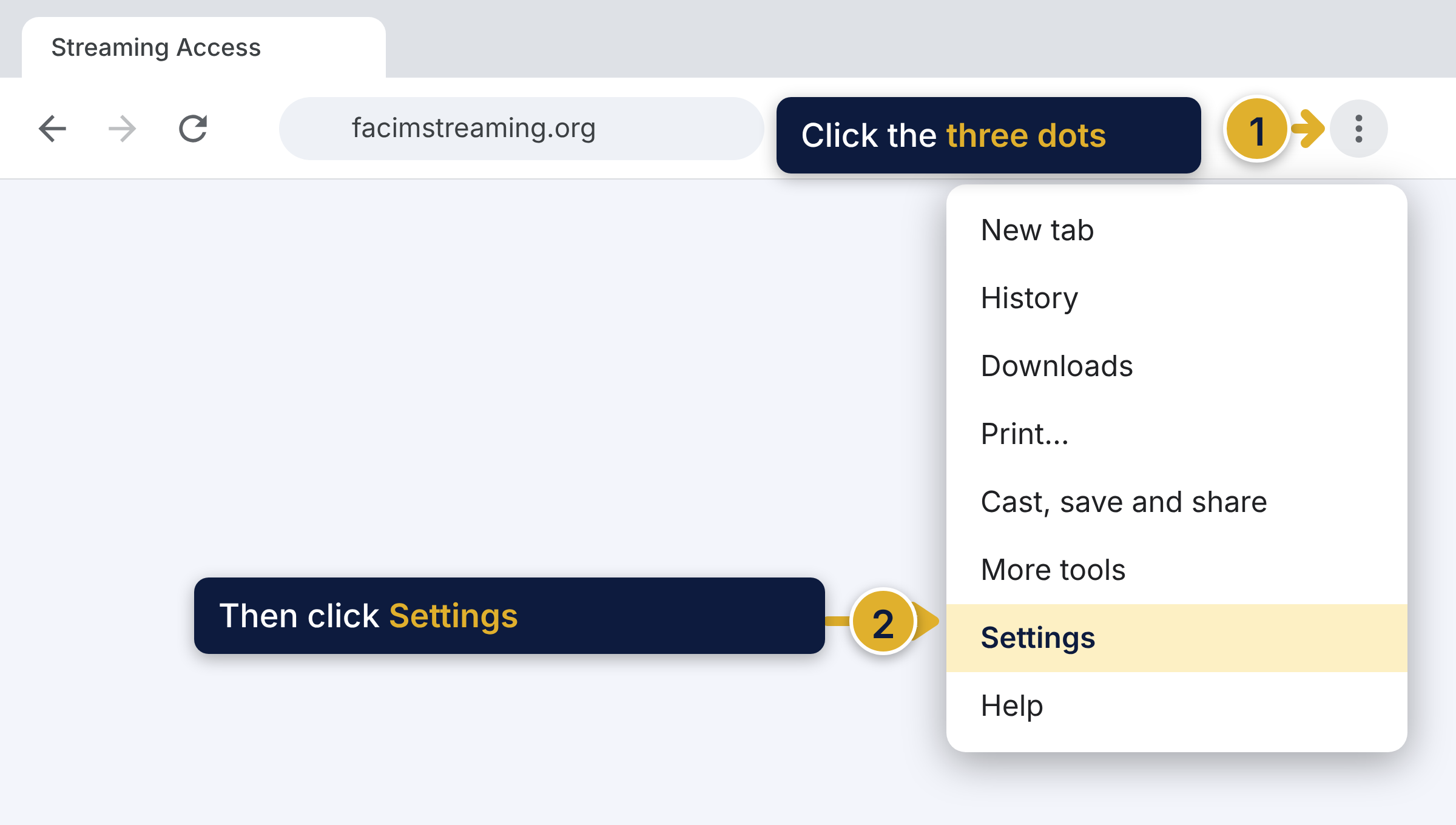
- Open Chrome. Click the three dots at the top right, then click Settings.
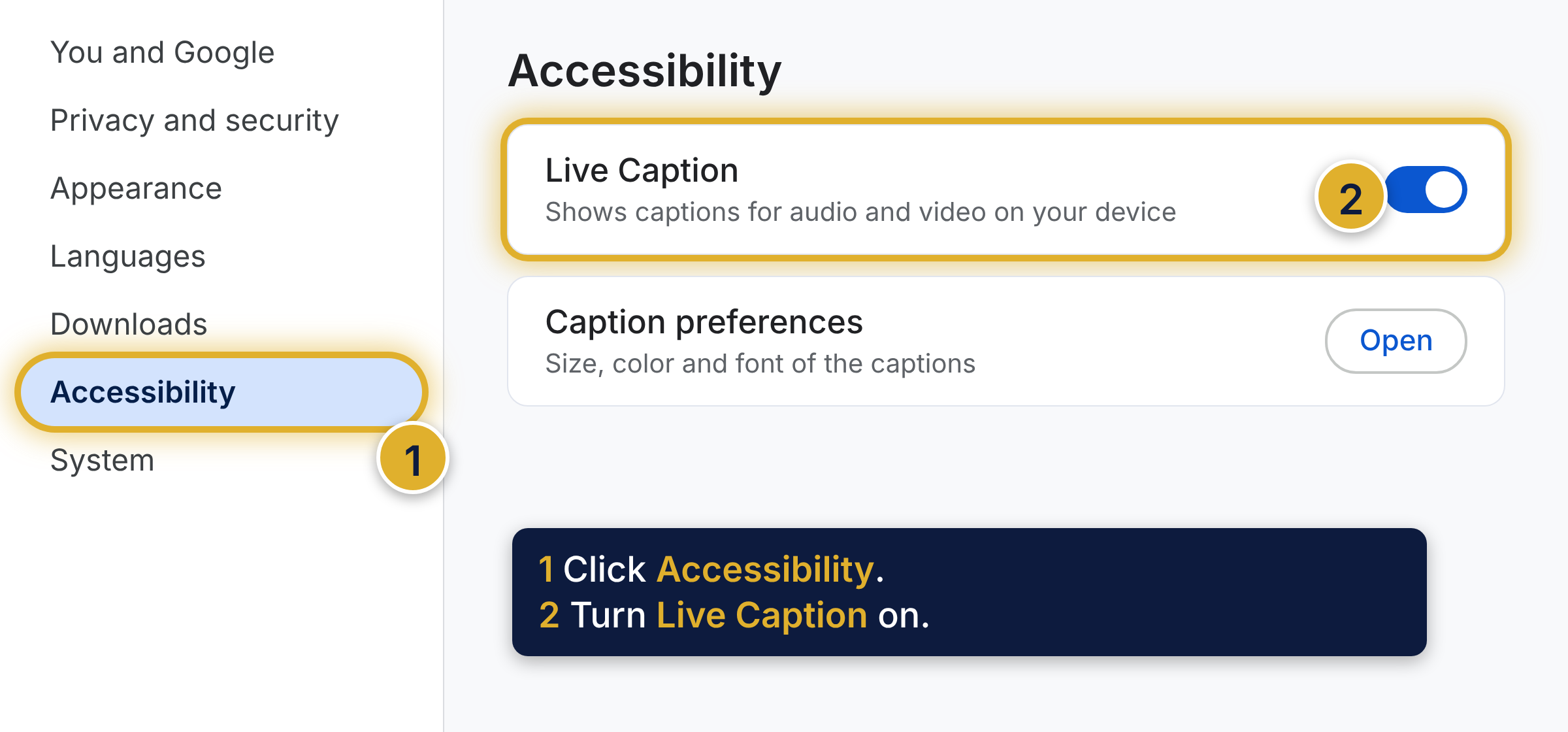
- Click Accessibility in the left column. On Linux, click Captions.
- Turn Live Caption on.
The first time you turn it on, Chrome has to load its speech recognition files, so the captions may take a moment to start. This happens once for each language you choose.
Or switch it on while you listen
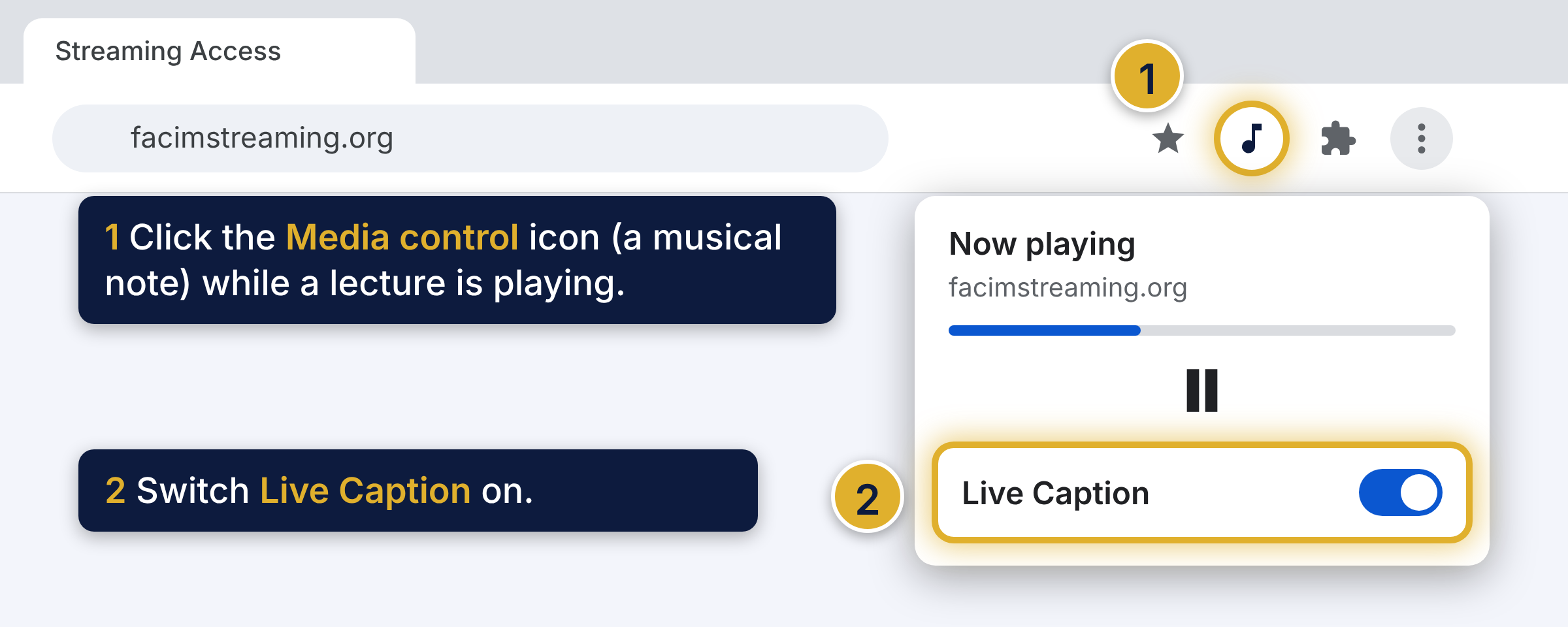
- Start any lecture. Click the Media control icon (a musical note) at the top right of Chrome.
- Switch Live Caption on.
Using the captions
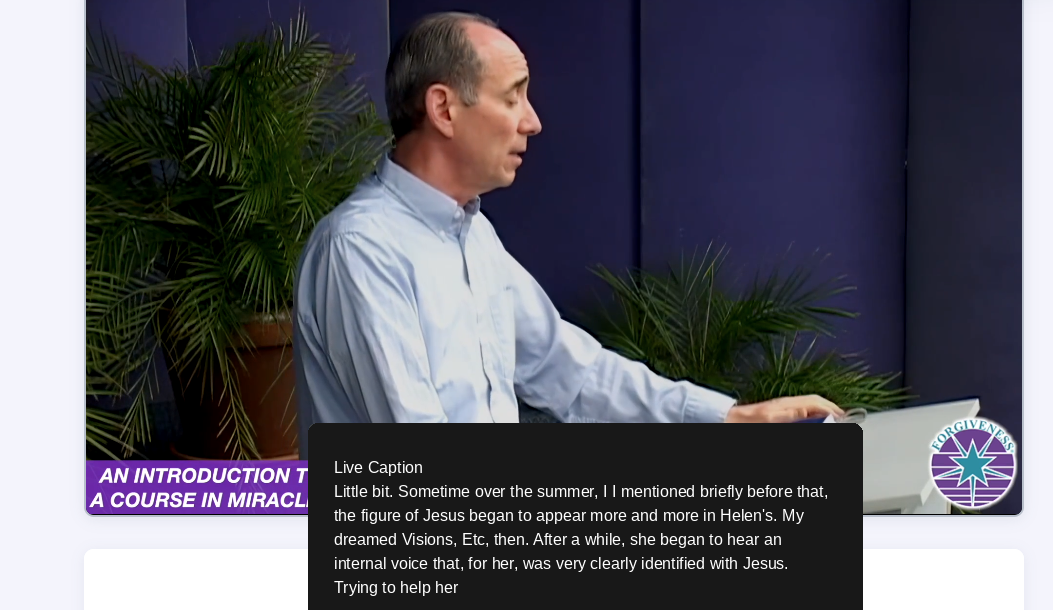
Once Live Caption is on, a black box with the words appears over your lecture as you listen or watch.
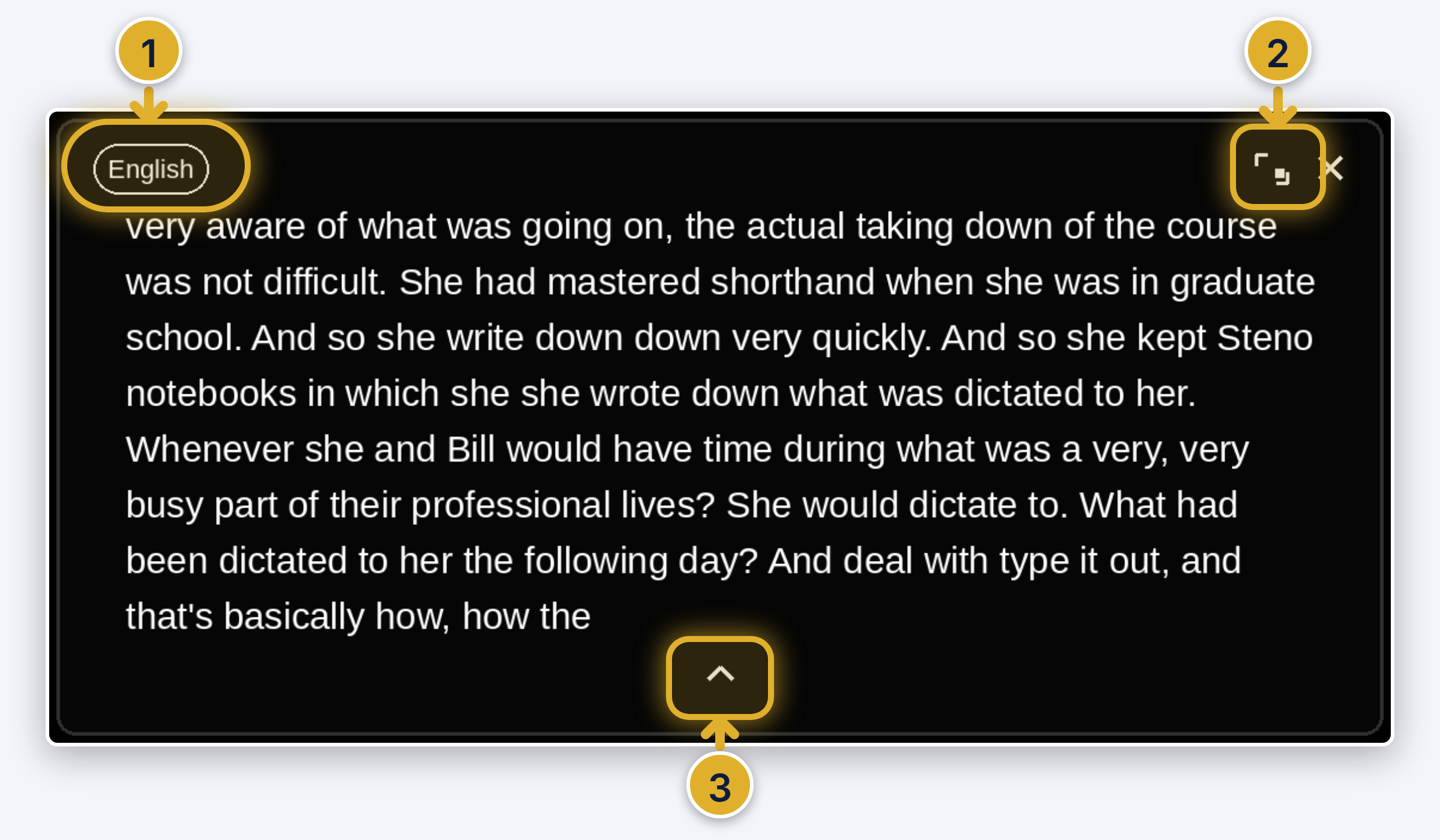
- The English button opens the caption settings, the same Live Caption and Live Translate settings you reach from the three dots in Chrome.
- Back to tab returns you to the lecture page.
- The arrow at the bottom makes the box show more or fewer lines of text.
You can also drag the box to any spot on the screen, for example over the video. If it ever goes out of sight, see “If the captions disappear” below.
Translate the captions
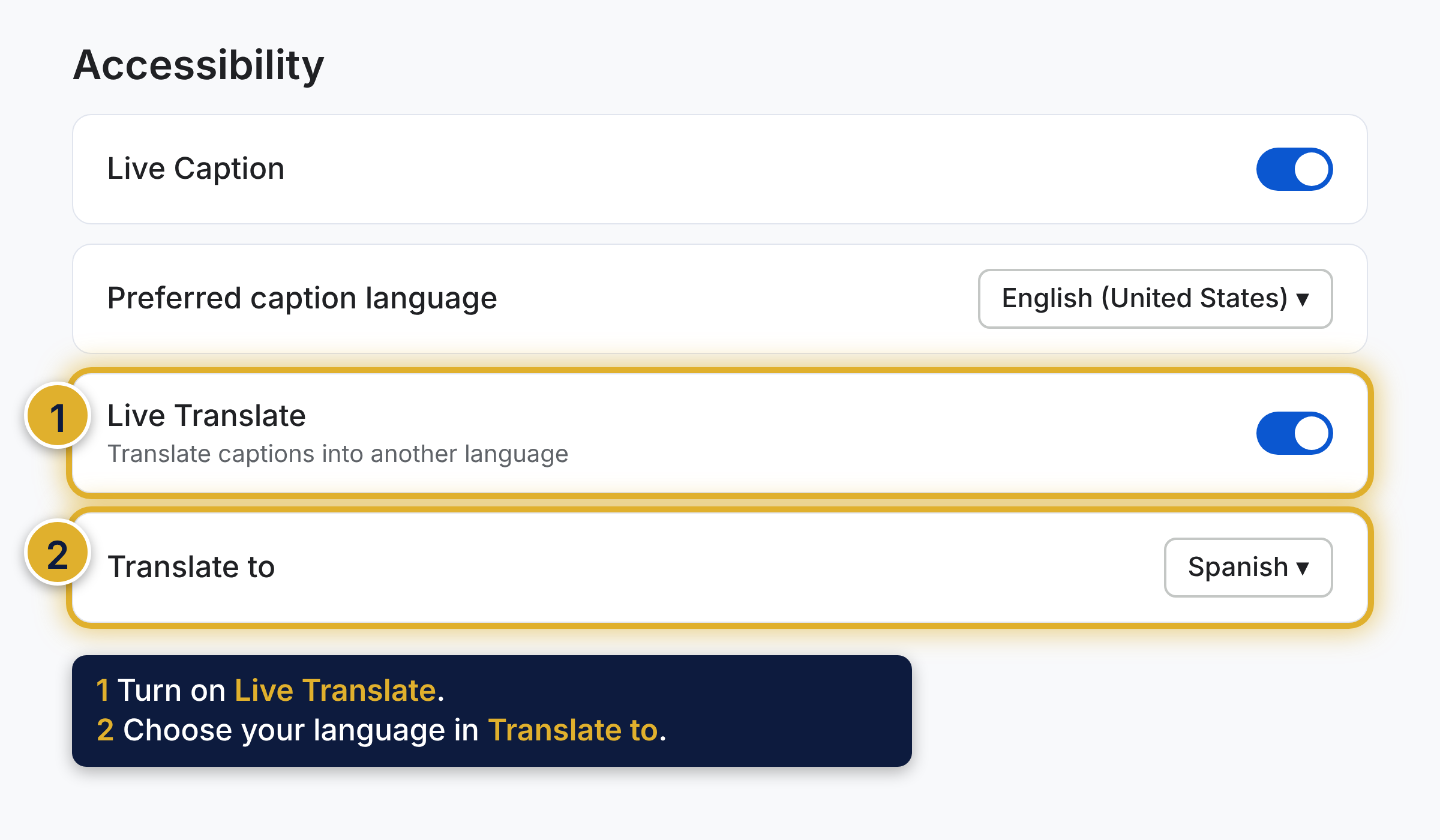
- In the same Accessibility settings, find the second switch below Live Caption, called Live Translate. Turn it on.
- Open the list next to Translate to and choose your language.
- The first time for each language, Chrome loads its files, so wait a moment for the captions to appear.
If the captions disappear
- Can’t see the box? It may have been dragged out of view, to the edge of the screen or behind another window. Look around for it, then drag it back over the video.
- Closed it with the X? Reload the page (click the circular arrow at the top left of Chrome) and press play. The box comes back each time you reload.
- Still nothing? While the lecture plays with the sound on, click the Media control icon (the musical note) at the top right of Chrome and make sure Live Caption is on.
- Translation missing? Live Translate is not in that window. Click the English button in the captions box, or go to Settings, then Accessibility. Make sure Live Translate is on and your language is chosen next to Translate to.
Please know: Live Caption and Live Translate are features of Google Chrome, not of our website. The Foundation does not guarantee the accuracy of the captions or the translations. They are made by computer while the lecture plays, so some words, names and Course terms may be wrong. Live Translate sends the captions to Google to be translated.
Good to know
- Phones and tablets have their own caption features. Look in your device’s Accessibility settings.
- Slower can be easier. In the audio player, tap the speed button (0.5× to 2×). In the video player, use the speed button on the bar (1× to 2×).
To learn more about the Audio and Video Player features, click here.