
Watch on Your TV
You can watch our videos on a bigger screen, such as your TV. The most dependable ways are a phone, a tablet or an HDMI cable. Find your device below and follow the numbered steps.
Which one is mine?
iPhone or iPad
You use AirPlay, in the Safari app. A dependable way.
Android phone or tablet
You use Google Cast, from the Cast icon on the video. A dependable way.
Windows or Mac computer
A browser feature in Chrome or Edge. It may not work on every computer or TV. An HDMI cable always works.
Before you start
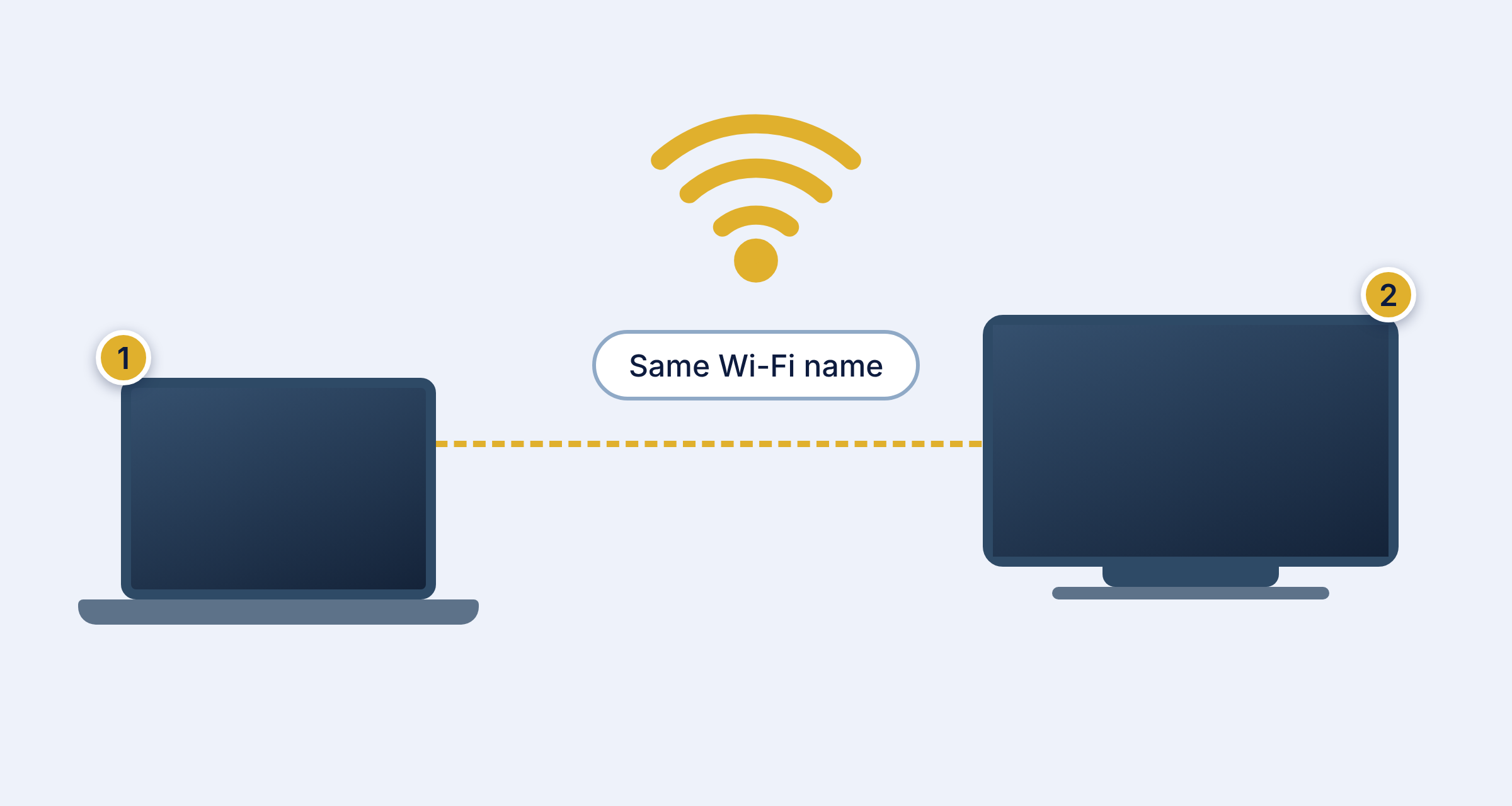
- Turn your TV on.
- Your device and your TV must be on the same Wi-Fi. Check the Wi-Fi name on both.
- Your TV must understand Google Cast (look for Chromecast built-in or Google Cast) or AirPlay (Apple TV, and many newer smart TVs).
- Update your browser (Chrome or Safari) and your device to the latest version.
Where to find it on our video pages
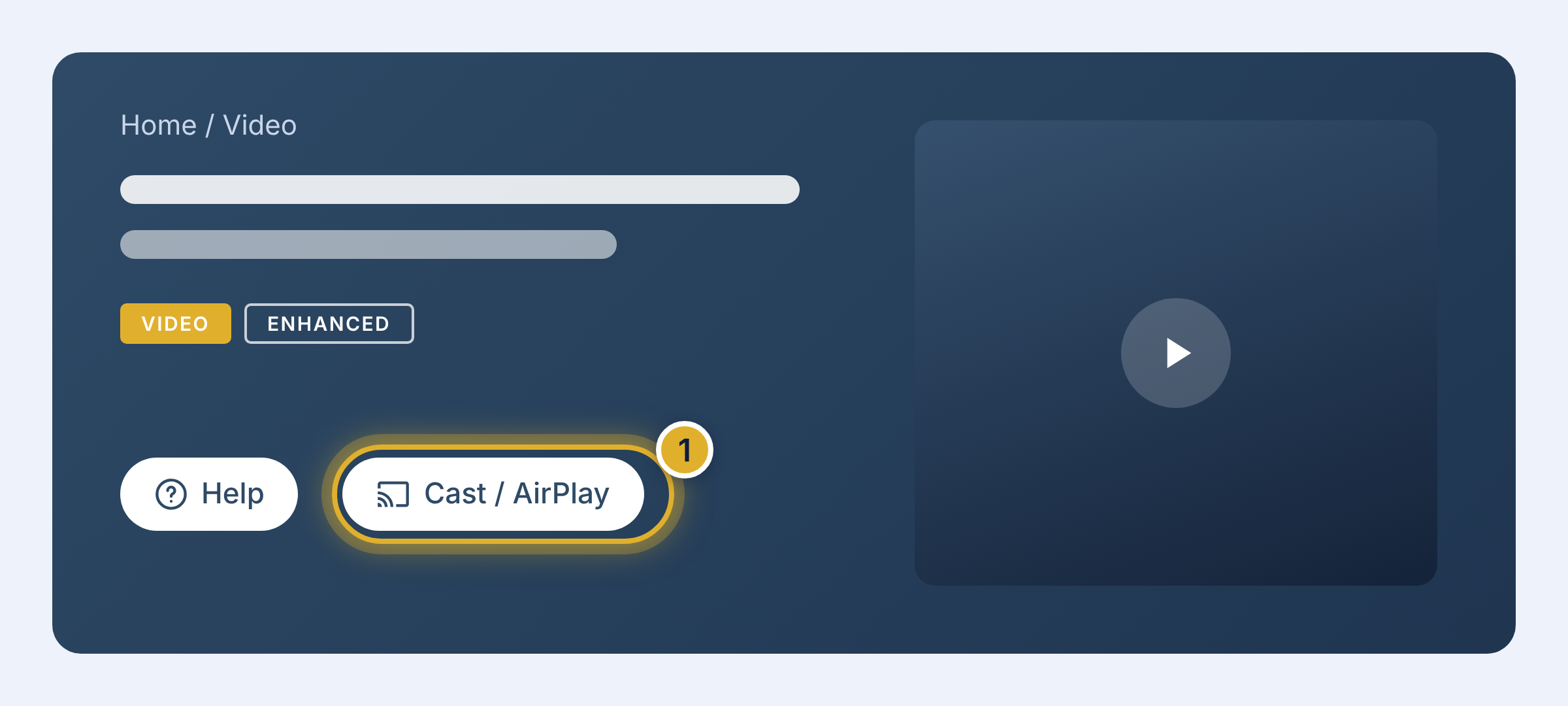
Each video page has a Cast / AirPlay button next to Help. It brings you to this page.
iPhone or iPad (AirPlay)
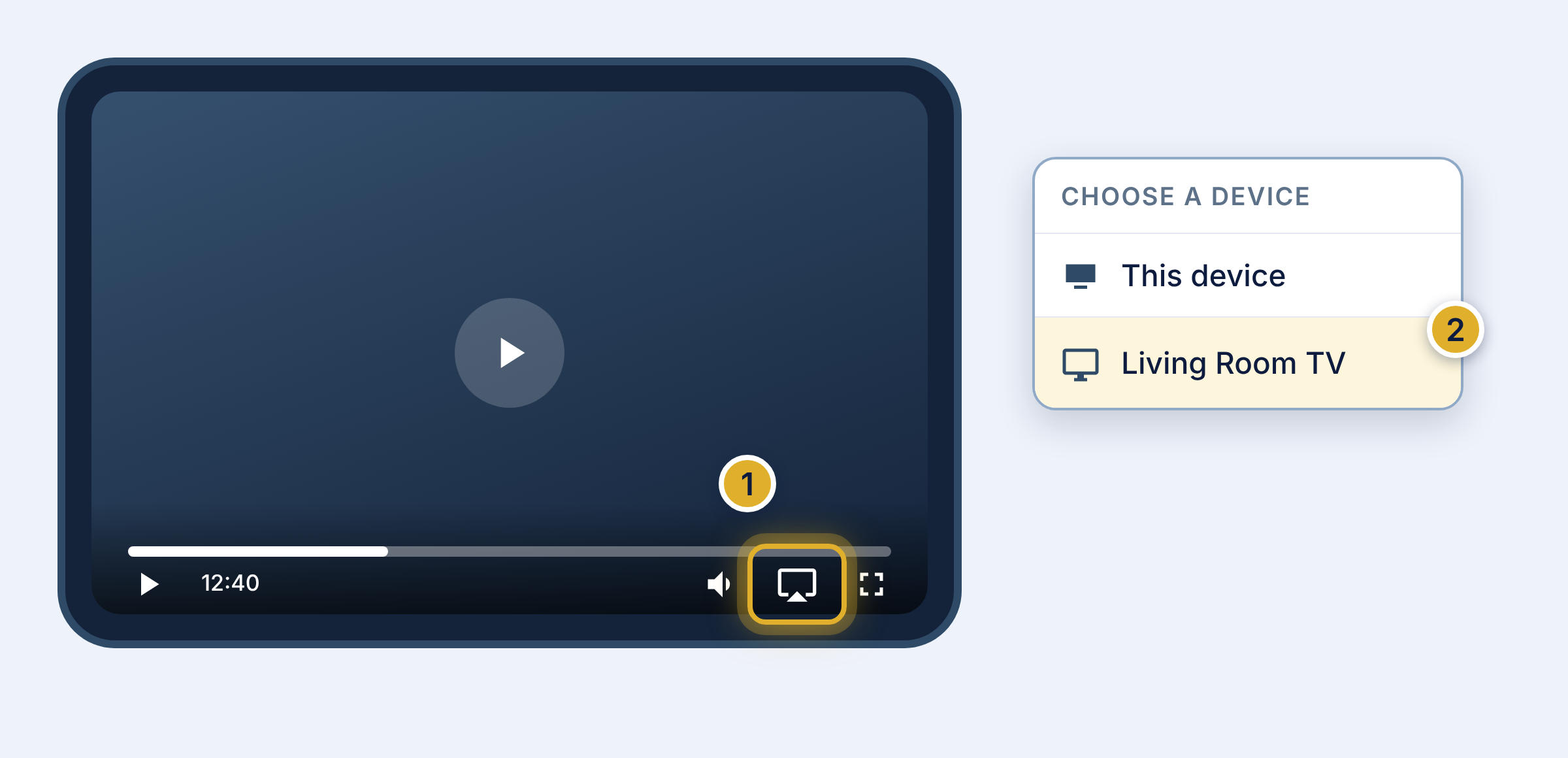
- Open the video page in Safari and press play.
- Tap the video once so the buttons show. Tap the AirPlay icon (a small screen with a triangle).
- Pick your TV from the list. If a code shows on the TV, type it on your device.
- To stop, tap the AirPlay icon again and choose your own device.
Your TV does not show in the list? Make sure it supports AirPlay (Apple TV, or a newer smart TV), it is on, and it is on the same Wi-Fi. On iPhone and iPad, Local Network access must be allowed for Safari.
Android phone or tablet (Google Cast)
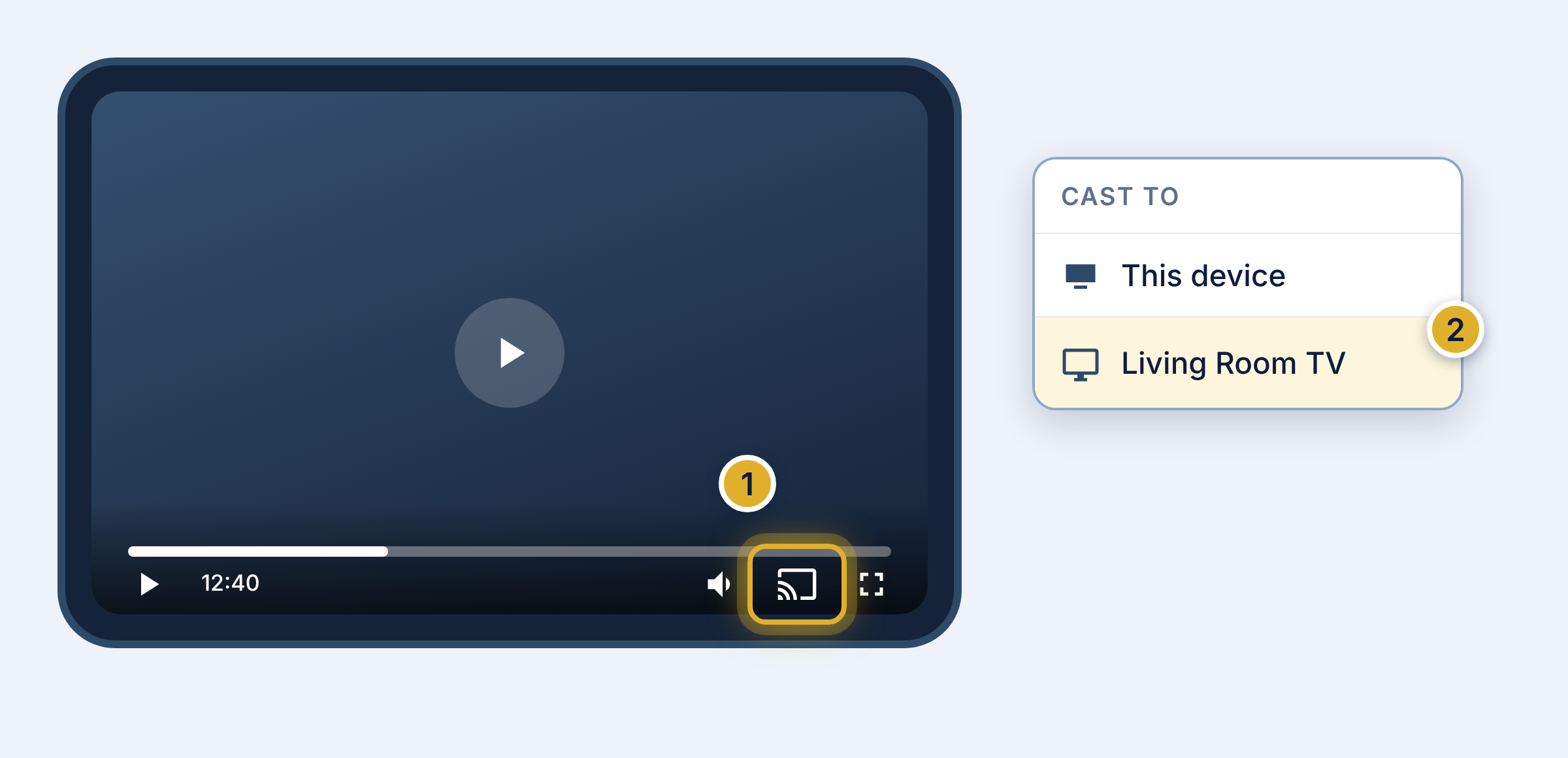
- Open the video page in Chrome and press play.
- Tap the video once so the buttons show. Tap the Cast icon (a small screen with waves).
- Pick your TV from the list.
- To stop, tap the Cast icon again and choose Stop casting.
You do not see the icon? Check that the TV is on and on the same Wi-Fi as your device. The icon only shows when your device finds a TV.
HDMI cable: the way that always works
A cable does not depend on Wi-Fi, your browser or your TV’s casting. If casting gives you trouble, this is the simplest fix.
- Connect your computer to the TV with an HDMI cable.
- On the TV, choose that HDMI input with the TV remote.
- Play the video on your computer and make it full screen.
Phones and tablets need an adapter that fits their charging port.
Windows or Mac computer
Please know: Casting from a computer is a feature of the Chrome and Edge browsers. It is not provided by us, and it may not work on every computer or TV. If it does not work for you, use a phone, a tablet or an HDMI cable instead.
If you would like to try, use the browser’s own Cast menu. It works with Chrome and Edge. It does not work with Firefox.
In Chrome
- Start the video, then click the three dots at the top right of Chrome.
- Click Cast, save and share, then Cast.
- Pick your TV. If asked for the source, choose Cast tab.
In Edge
- Start the video, then click the three dots at the top right of Edge.
- Click Cast, find and share, then Cast media to device, and pick your TV.
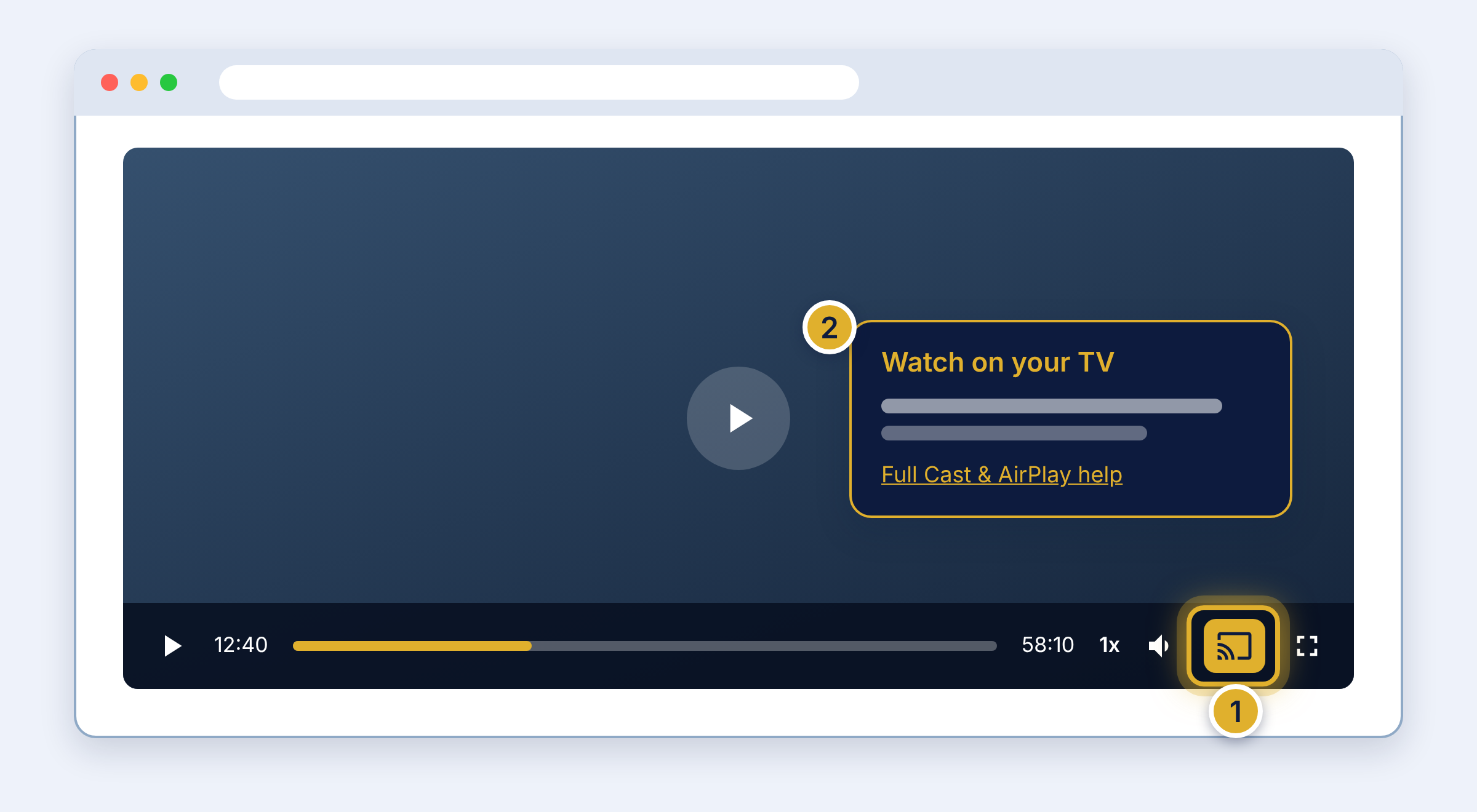
The TV button on our video
On a computer, move your mouse over the video to see our controls. The TV button opens a short note and a link to this page. Each picture number matches the note under it.
If your TV does not show
Check these first (all devices)
- The TV is on, and it is on the same Wi-Fi as your device. A “guest” network or a Wi-Fi extender is often a different network.
- Restart your TV, your device and your Wi-Fi router. To restart the router, unplug it for 30 seconds, then plug it back in.
- Update Chrome or Safari, and the software on your device and TV.
- Check the date and time on your computer and TV. If they are far apart, casting can fail.
Computer or laptop will not cast? Try a phone or tablet
Tip: If casting from your computer or laptop is giving you trouble, sign in on your phone or tablet and cast from there, or use an HDMI cable. Phones and tablets use casting built into the device, while computers depend on the browser, security software and network settings, which can block the connection to your TV.
Apple devices
- Use Safari, and keep your iPhone or iPad on the same Wi-Fi as the TV.
- On iPhone and iPad, make sure Local Network access is allowed for Safari (Settings > Privacy & Security > Local Network).
- If a code shows on the TV, enter it on your device.
Android and Google TV
- Update the Google Home app and Google Play services on your device.
- Make sure your TV’s Chromecast built-in or Google Cast feature is on, and the TV is signed in to a Google account.
- On a Google TV, an old copy of the casting software can cause trouble. Your TV maker’s help shows how to clear its data.
Roku TVs and sticks
- Roku does not accept Google Cast from a browser, so your Roku may show in the list but not play our videos.
- The easy fixes are an HDMI cable from your computer to the TV, a Chromecast, or an Apple TV.
Please know
We turn on Google Cast and Apple AirPlay for every video. The features themselves, and what you see on your screen, come from the video player and from your device and TV makers. Home networks and TVs are all different, so we are not able to set up or repair your devices for you.
We have gathered trusted guides below. They show the steps and fixes, and your TV or device maker’s support can help with setup. Thank you for understanding.